

Department of Computer Science
Printers
User Code Instructions:
-
Sharp Printer User Code (Windows)
- Once the correct Sharp printer drivers are installed on your Windows computer, open Control Panel on your computer and navigate to Devices and Printers.
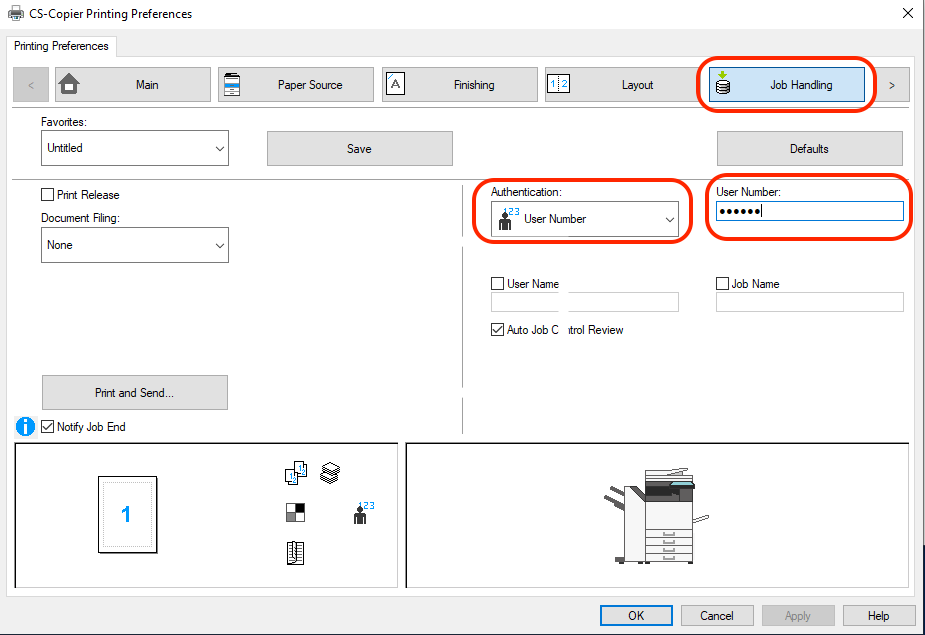
- Right-click the printer you want to configure and click Printing Preferences and navigate to Job Handling. If the Job Handling tab does not show, the wrong printer driver is being used.
- Select User Number under Authentication drop-down options. Then, enter the user code for the department under User Number.
- Click Apply.
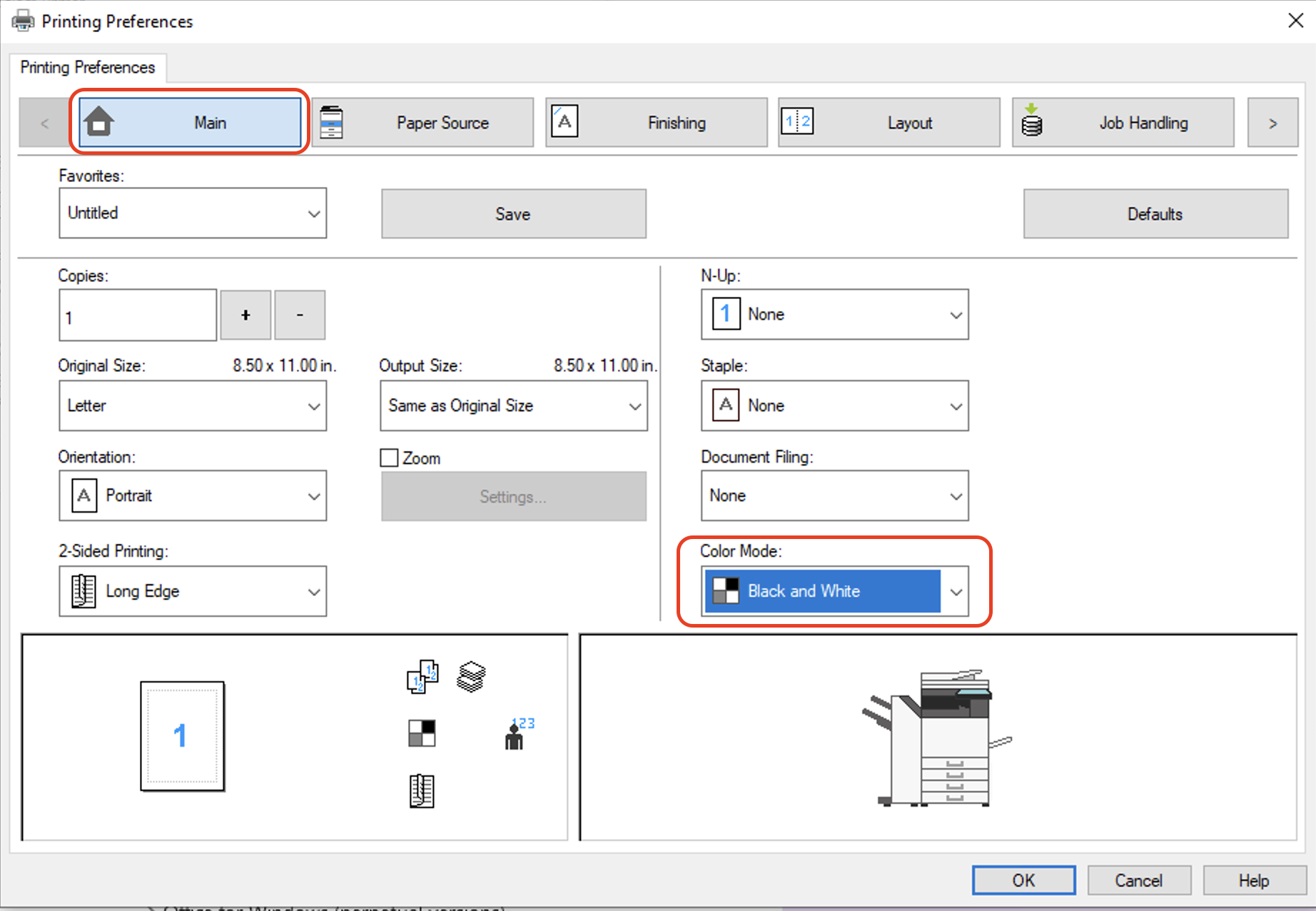
- Navigate back to Main and select Black and White under Color Mode, then click at Save on the top next to Favorites.
- Rename the settings and click Ok.
- Click Apply.
Note: It will not print if the Color Mode is set to "Automatic" or "Color" option.
-
Sharp Printer User Code (MacOS)
- Once the correct Sharp printer drivers are installed on your Mac computer, open a program like Microsoft Word or TextEdit.
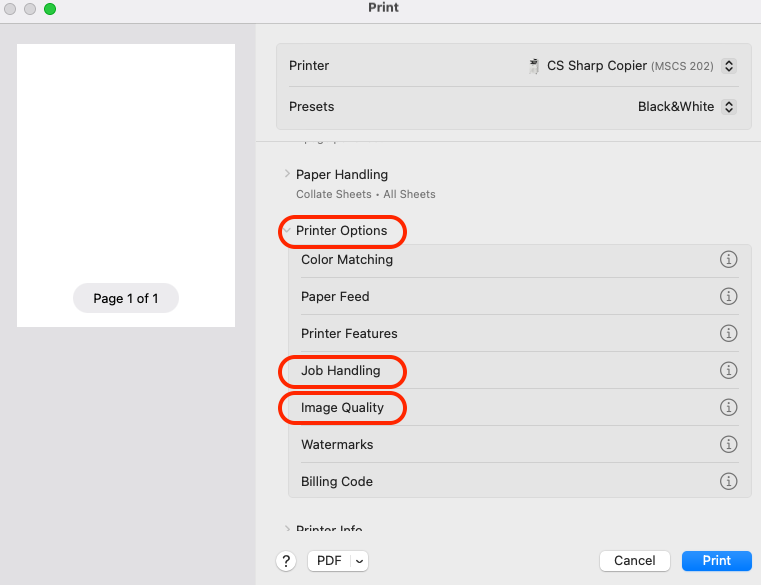
- Go to File -> Print.
- Scroll down and click at Printer Options then click at Job Handling.
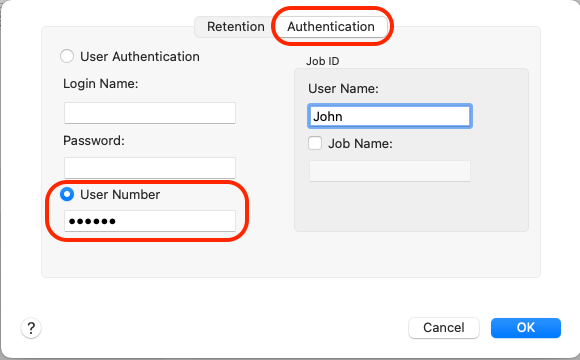
- Select the Authentication tab.
- Select User Number and enter the user code for the department.
- Click OK to save the code.
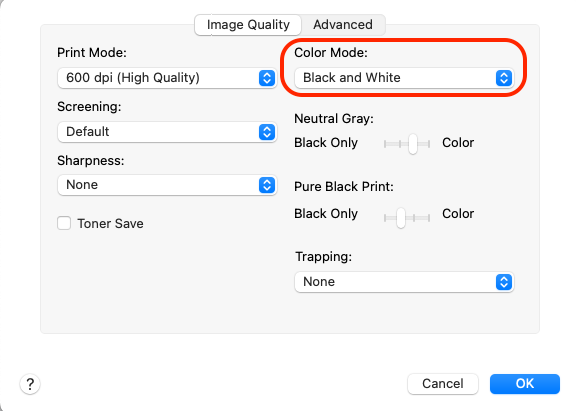
- Navigate to Image Quality and select Black and White under Color Mode.
- Creating a Preset to save the preferences with a Job Handling Code (Helpful when printing from a browser):
- Open Microsoft Word and click on File -> Print.
- Select the correct printer with the Job Handling settings configured from the previous steps.
- Click on the Presets drop-down options and choose Save Current Settings as Preset.
- Choose a name for the preset you have just created (Example: CS Copier w/ Code).
- You should now be able to select the preset when printing from a browser in order to print with a Job Handling Code.
Note: It will not print if the Color Mode is set to "Automatic" or "Color" option.
Hostname and Drivers:
| Hostname | Model | Location | Driver | User Code |
|---|---|---|---|---|
| Request Hostname | Sharp BP-71C55 | MS 202 | Request User Code (Faculty/Staff/Graduate Students) | |
| Request Hostname | SHARP BP-70C31 | MS 112C | Request User Code (Staff) | |
| Request Hostname | HP LaserJet M406 | MS 203E | Download Driver | Available for all CS students |
| Request Hostname | Brother HL-L6300DW laser printer | MS 222 | Download Driver | Available for all CS students |
| Request Hostname | HP LaserJet M406 | MS 222 | Download Driver | Available for all CS students |
| Request Hostname | Brother HL-L3270CDW series | MS 206 | Download Driver | Available for all CS students |